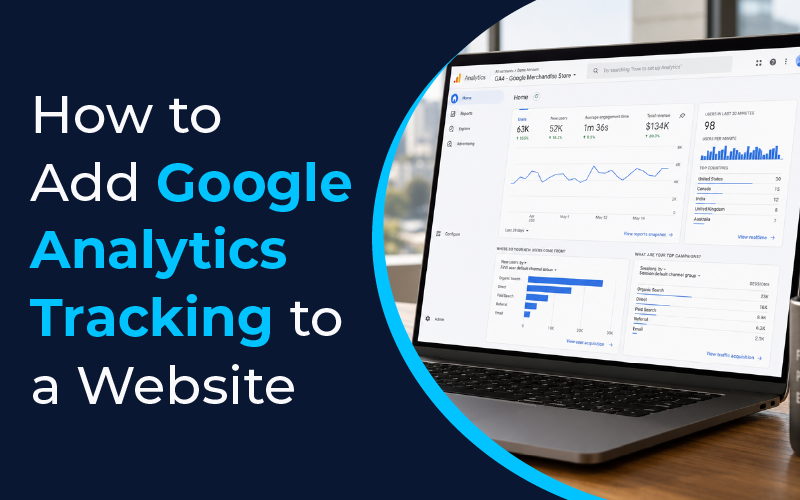
You care about your website, right? You’ve spent time crafting pages, writing copy, and maybe even losing sleep over the color of a CTA button. You’ve developed pages with much detail, you’ve written web copy, and perhaps you’ve even stressed the color of your calls to action.
But you don’t know who visits or what they do once there, so you are somewhat blind to what is happening on your site.
You will find this guide useful if you would like to add Google Analytics tracking to your website in a way that is easy to understand, humanized, and very useful. This guide is practical and straightforward, with simple steps and tips from someone who has unintentionally broken tracking multiple times.
Over the years, we have implemented Google Analytics and Google Tag Manager tracking on eCommerce stores, on lead-generation sites, and across many different marketing campaigns.
Based on our experience, there is a very high likelihood that a mistake in any of these areas will ultimately lead to incorrect data reports, thereby impacting executive decision-making at that organization.
Why Analytics Matters

Duplicate tracking codes are among the most prevalent problems we see during our analytics audits and can inflate traffic numbers, causing businesses to base decisions on incorrect information. To be completely transparent, it can be challenging to establish analytics. They have a technical nature, are a little ambiguous, and there is always the possibility that you might discover something significant is missing from your analytics setup.
Once you’ve done a proper job of setting up analytics, this is it: this is where you’ll make data-driven decisions based on all collected information to meet your goals.
No more guessing!
Use this information to either raise conversion rates, determine where the traffic’s coming from, or verify the costs associated with marketing activities.
How to Add Google Analytics Tracking to a Website
With Google Analytics, you can track how users are behaving on your website. As part of this service, you can obtain information about where your users are located and how long they have spent on your website. Think about Google Analytics as a camera that takes pictures of your users as they interact with your website and provides this data for you to analyze.
GA4 has been established as the default platform for Google Analytics; it will replace Universal Analytics, which ceased data collection in July 2023.
What Works for You
- Your website stats can show you how many people visited your site from a search engine, an ad, social media, or by entering the URL directly.
- You will be able to find out which pages are worth improving with your time and energy and which ones need a complete rewrite.
- If you’ve ever asked yourself, “What blog posts produce leads?” or “Why so many shopping carts are abandoned at step #2 in my checkout process?” then you can now begin to find those answers!
How to Add a Website to Google Analytics

In this article, we will look at implementing Google Analytics 4 (GA4) in a modern way, along with a simple code example of Google Analytics 3 (GA3).
You can set up your tracking in two different ways, and you should pick the one that works best for you.
Step 1: Create a Google Account/Use an Existing One
Create a Google Account or sign in with your current Account. If you do not have an account at Google Analytics yet, go ahead and create your Google Analytics account first at analytics.google.com.
Step 2: Create a New Property
- Click on the ‘Admin’ tab.
- Select the ‘Account’ from the drop-down or create a new account.
- Click on the ‘Create Property’ link under the ‘Property’ heading in the Admin panel.
- Enter your site’s name, time zone, and currency, and click on ‘Next’ at all other steps to finish.
- You have successfully set up a GA4 Property (the final version of Google Analytics).
If one of your Team members continues to reference Universal Analytics, kindly explain that GA4 is the Next-Gen Version of Google Analytics.
Step 3: Where to Find Google Analytics Code
Once you’ve established the property:
- Go to the Admin section of your real estate property and click on “Data Streams”.
- Click on the “Add Stream” button, and select Web.
- Type in your Stream Name and URL to start the process.
- You will receive a Measurement ID (e.g., G-XXXXXXXX), the unique identifier for your newly created property stream.
- After you’ve created your web stream, click on the “Global Site Tag (gtag.js)” button to get your analytics coding or your Google Analytics coding snippet.
- Copy this code to refer to at a later time.
Step 4: Add the Snippet to Your Website
- To add the tracking code to HTML websites, place the tracking snippet of your Google Analytics account into the section of every webpage just before the closing tag.
- For WordPress-based websites, either use a theme to implement the tracking code, or install and activate a plugin that allows you to insert it into your theme’s header.php file (note: using a child theme is recommended), or by installing GA plugins to add your Measurement ID to your tracking/analytics tool.
- For Wix and Squarespace websites, access your site’s settings and paste the tracking/analytics ID into the respective tracking ID field.
- If using a template builder such as Divi, Elementor, etc., look for the ‘Custom Code’ or ‘Head Scripts’ option to appropriately identify where to place your GA script in the different template builders available on these platforms to gain a foundational understanding of how to connect your Google Analytics account with your website.
Note: Prior to using any tracking technologies, please ensure that your tracking disclosures contain all necessary information needed by law and/or regulation.
Alternative Route: Use Google Tag Manager
To gain flexibility (and have fewer development requests), use Google Tag Manager (GTM).
Why GTM?
After doing the initial setup, you can deploy GA and other tracking tools without having to do any coding. Anyone, including non-developers, can use GTM to add tags for ads, conversions, heatmaps, and much more!
Quick GTM steps
To set up a GTM account:
- Go to the tag manager at tagmanager.google.com
- Enter the two GTM container codes (one in the head section and one in the body section) to create a distinct GTM instance for each of your pages.
- In GTM, create a new Google Analytics: GA4 Configuration tag, specify your measurement ID, set the trigger to All Pages, and then publish your tag.
For best results, once GTM is set up, remove any duplicate gtag tags; multiple tags will result in overcounting.
Verify and Test
Real-time Reports
Open Realtime in Google Analytics 4 (GA4) using an incognito window. Browse some pages on your site and verify that your visit appears in Realtime. If it does not, ensure that you copied the correct Measurement ID and that the Tracking Code is in the Head of your web page.
Use Tag Assistant
Install Google’s Tag Assistant (or the browser extension) to see if GA/GTM is firing correctly. It will show errors and warnings.
Common Gotchas
- Duplicated tags (either producing multiple pageviews) in GA through your theme or via GTM create additional data collection instances.
- Incorrectly using an ID can cause data to be sent to the wrong property if the property is considered a “test” property.
- Filters or IP exclusions set too aggressively can cause you to hide traffic that shouldn’t be hidden.
- In a single-page application, you may need to configure additional monitoring for virtual page views.
What to Set Up Next to Support Analytics

Goals and Conversions
Define “conversion” by how you determine it. It can be form submissions, purchases, or sign-ups. Use GA4 to set your events as conversions so that you will know when you have tracked what winning means.
Link Other Products
Link your other products, including Google Search Console, to see the keywords used to find your business, and link Google Ads to measure your campaign’s ROI through these integrations. All this data becomes actionable when linked together.
Event Tracking
GA4 is also geared towards providing tracking for events. You should track user actions such as clicks on external links, downloads, and video plays using either GTM or gtag to push your custom event tracking.
Use GA4’s Exploration reports to create custom funnels, identify where users drop off during their visit, and determine where to redirect your efforts.
Where to Find Google Analytics Code Later
If you are wondering how to find the Google Analytics code, follow these steps:
To find the code:
1. Go to the Google Analytics Admin tab
2. Click on Data Streams
3. Click on your Web Stream name
4. Click “Global Site Tag (gtag.js)” (for example)
5. Copy the code from this page and paste it into your website’s header section.<br><br>
or go to Admin > Property Settings (Measurement ID)
Make sure you maintain records with the Measurement ID, Property Name, and location of the tracking code snippet so that you do not have future problems.
Note: Analytics data is not always accurate. Users can block ads, set browsers not to accept cookies, and decline to give consent, all of which will affect the way you collect data from them. Instead of expecting to know the exact number of visitors to your website, look for trends and patterns in the data.
Conclusion
Make better decisions by using basic tracking metrics: add GA code, check that tracking is working, and classify conversion-related actions. By using those three tracking methods, you will have enough data to analyze the actions users took across different pages of your site. Now add your site to GA and check the real-time report; you will gain insight into how users perceive your website.
Frequently Asked Questions
Do I need coding knowledge to set up Google Analytics?
No, Google Analytics Measurement IDs can be easily added to most web hosts, such as WordPress, Wix, Squarespace, Exponent, and Shopify, without modifying code. If you are using Google Tag Manager for your analytics setup, you will have easy access to both configuring and setting up event tracking; therefore, you will need very minimal technical knowledge to configure both.
How long does it take for Google Analytics to start collecting data?
Data is generally present shortly after installation. The Realtime portion of your Google Analytics account will show any active visitors currently on your web property. However, some standard reporting and insights may take 24-48 hours to populate.
What is the difference between GA4 (Google Analytics 4) and UA (Universal Analytics)?
As the latest data-tracking and analytics solution from Google, GA4 uses an event-based tracking approach, tracks visitors across devices, offers improved privacy features compared to its predecessor (UA), and is the recommended platform for tracking website/app performance.
Why am I not seeing any data in my Google Analytics account?
There could be several reasons you do not see data in your Google Analytics account, including: the tracking code is missing; the Measurement ID was not entered correctly; and the Google Tag Manager (GTM) Tag is not being triggered. To verify the setup of your new GA property, use the Google Tag Assistant Chrome Extension and look at the Realtime section of your Google Analytics property to troubleshoot any setup issues.